Tutorials (Nocera Demo Dataset)
This section provides step-by-step instructions on how to use the RiskChanges platform. Each section has a detailed video tutorial for better understanding.
About the Demo Dataset
For this tutorial, we’ll be using a demo dataset modeled after the city of Nocera Inferiore, Italy. Please note that the data does not represent real-world conditions and is purely for demonstration purposes within the RiskChanges platform.
Here’s an overview of what’s included in the dataset:
👉 Please refer here to access the dataset for this tutorial.
👉 Check this document for Input Data tutorial, this document for Exposure and Loss Calculation tutorial, and this document for Scenario, Alternative, and CBA Module.
👉 For more details about the dataset structure and use of Alternatives and Scenarios, refer to the dataset document.
👉 You may also go to these links to access the public project of this tutorial and clone the project to your account from the Project Settings.

Clone Public Project
Step-by-step Walkthrough
Let’s now go through the core tasks you’ll typically perform on the RiskChanges platform.
1. Register an Account and Setup the Profile
Start by visiting the official RiskChanges website: http://riskchanges.org/. Follow this guide to create your account and set up your profile.
2. Create a Project
To begin working, click the New Project button on the Project Dashboard. This opens the project configuration page which consists of five tabs: General, Team, Share to Public, Alternatives, and Scenarios.
Only the General section is required to create a project. Let’s fill the required fields with our demo dataset information:
Project Name: Risk City
Study Area: Boundary Dataset: geoBoundaries (Open), Country: Italy, Admin Level 1: Salerno, Admin Level 2: Nocera Inferiore
Description: This is a demonstration dataset based on Nocera Inferiore, Italy. The information presented does not reflect the actual conditions of the area and is intended solely for demonstration purposes within the RiskChanges platform.
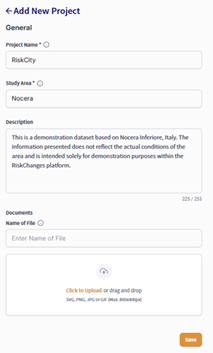
Filling General section
If you want to work collaboratively, go to the Team tab and invite your team members. You can skip Alternatives and Scenarios for now or set them later.
Your project will now appear on the dashboard as a card. Use filters to quickly search or sort through multiple projects.
3. Upload and Visualize Data
As mentioned in the user guide, there are several data inputs required for RiskChanges. These include Administrative Boundaries, Hazard Data, Elements-at-Risk (EaR) Data, and Vulnerability Data. You can upload data in various formats including shapefiles, GeoTIFFs, CSVs, and OGC services.
From your Project Dashboard, click into the project you want to work on. You will see the modules menu on the left side bar.
Administrative Boundary
Choose the Admin Level option and click Add Admin Level. Under the General tab:
Upload a zipped shapefile.
Enter a Name: Admin_Unit
Save.
RiskChanges automatically displays the boundary on the map with default symbology. You can customize visualization under the Detail section:
Label Field: Admin unit
Color Scale: aliceblue
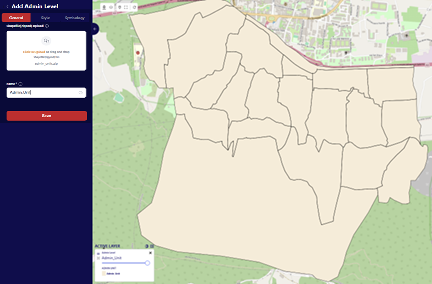
Uploading Administrative Boundary data
Hazard Data
Head over to Hazard > Add Hazard. Upload hazard data in GeoTIFF or zipped shapefile format.
Fill in required fields:
Layer Name, Hazard Type, Hazard Sub Type, Hazard Intensity Type, Hazard Intensity Unit
Return Periods, Representation Year, optional Alternative and Scenario
Click Save to apply.
Hazard Name |
Layer Name |
Hazard Type |
Sub Type |
Intensity Type |
Intensity Unit |
Representation Year |
|---|---|---|---|---|---|---|
Debris Flow |
DF_20 |
Mass Movements |
Debris Flows |
Impact Pressure |
kpa |
2020 |
Flood |
FL_20 |
Flood |
Fluvial Flood |
Height |
meters |
2020 |
Landslide |
LS_20_Class |
Mass Movements |
Landslides |
Susceptibility |
classes |
2020 |
Landslide Index |
LS_20_Prob |
Mass Movements |
Landslides |
Susceptibility |
probability |
2020 |
Note
Return periods should be adjusted according to the layers uploaded.
For visualization, adjust settings in the Detail section and click Save:
Hazard Name |
Class Mode |
Field |
Min Value |
Max Value |
Classification Method |
Color Map |
|---|---|---|---|---|---|---|
Debris Flow |
User Defined Classes |
VALUE |
0.001 |
12.5 |
Quantile |
YlOrBr |
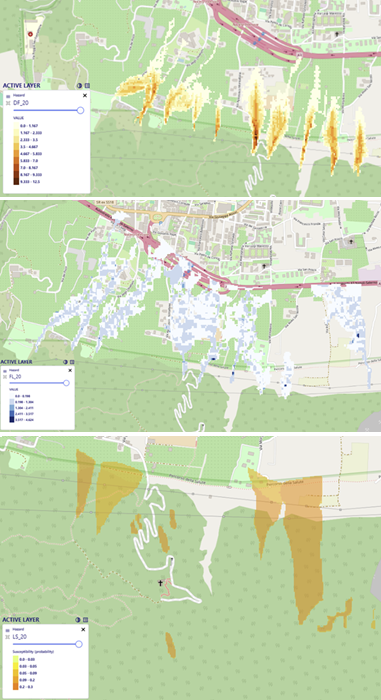
Hazard Visualization
Element-at-Risk (EaR) Data
Go to EaR > Add EaR to upload buildings, roads, or land parcels in GeoTIFF or zipped shapefile format. Then define:
Layer Name
Element at Risk Type / Element at Risk Sub Type
Representation Year, optional: Alternative, Scenario
Similarly, use the Detail section to adjust visualization settings:
EaR Name |
Style Mode |
Field |
Area Field |
Area Unit |
Value Field |
Value Unit |
People Field |
People Unit |
Color Map |
|---|---|---|---|---|---|---|---|---|---|
Building Point |
Automatic Classes |
[TYPE] |
[AREA] |
sq.m |
[VALUE] |
USD |
[PEOPLE] |
number |
brg_r |
Building Footprints |
Automatic Classes |
[USE] |
[AREA_N] |
sq.m |
[VALUE] |
USD |
[PEOPLE] |
number |
brg_r |
Roads |
User Defined Classes |
[CALCULATED_AREA_LENGTH] |
– |
– |
– |
– |
– |
– |
autumn_r |
Land Parcel |
Automatic Classes |
[TYPE] |
[AREA_N] |
sq.m |
[VALUE] |
USD |
[PEOPLE] |
number |
brg |
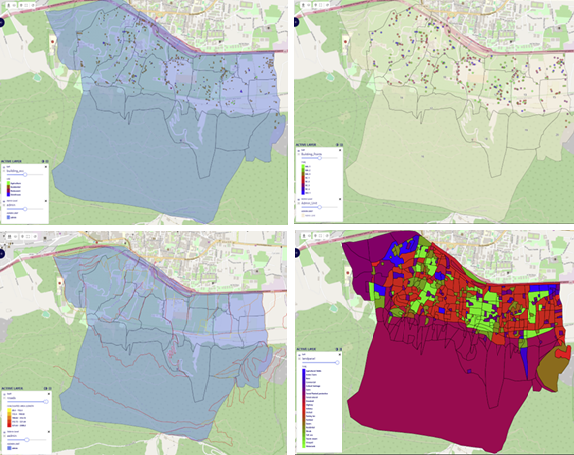
Element-at-Risk Visualization
4. Vulnerability Table
In the Vulnerability tab, you can add a vulnerability curve either by uploading a CSV file or filling in data manually under the Data tab. CSV files require Hazard Intensity and Average Vulnerability column headers.
Fill out metadata under General:
Vulnerability Region and Vulnerability Type
Hazard Type and Hazard Sub Type
Hazard Intensity Class Mode, Hazard Intensity, and Hazard Intensity Unit
EaR Type, EaR Sub Type, and EaR Class
Source, Description
Public/Private visibility (Is Public): If set to Yes, the record is stored under All Vulnerability after administrator validation; otherwise, under My Vulnerability.
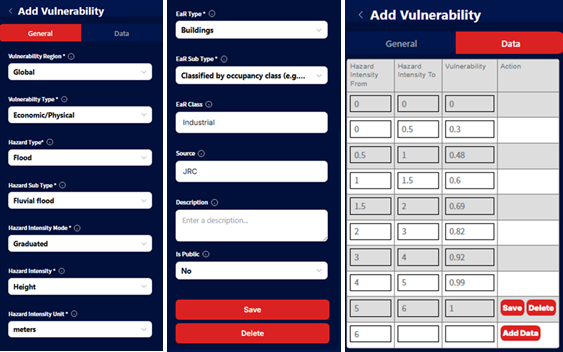
Vulnerability Table Input
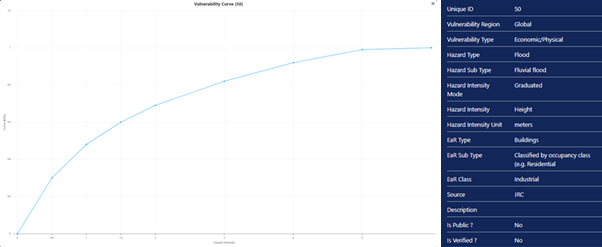
Vulnerability Curve
Vulnerability IDs for Building Materials
ID |
Debris Flow (Physical) |
Flood (Physical) |
Landslide (Physical) |
Debris Flow (Population) |
Flood (Population) |
Landslide (Population) |
|---|---|---|---|---|---|---|
Masonry 1 floor |
86 |
78 |
94 |
162 |
170 |
182 |
Masonry 2 floor |
87 |
79 |
95 |
163 |
171 |
183 |
Masonry 3 floor |
88 |
80 |
96 |
164 |
172 |
184 |
Reinforced Concrete 1 floor |
89 |
81 |
97 |
165 |
173 |
185 |
Reinforced Concrete 2 floor |
90 |
82 |
98 |
166 |
174 |
186 |
Reinforced Concrete 3 floor |
91 |
83 |
99 |
167 |
175 |
187 |
Reinforced Concrete 4 floor |
92 |
84 |
100 |
168 |
176 |
188 |
Wooden |
93 |
86 |
101 |
169 |
177 |
189 |
Vulnerability IDs for Land Parcel Types
ID |
Debris Flow (Physical) |
Flood (Physical) |
Landslide (Physical) |
Debris Flow (Population) |
Flood (Population) |
Landslide (Population) |
|---|---|---|---|---|---|---|
Agricultural Fields |
All 1 |
132 |
135 |
190 |
212 |
234 |
Animal Farm |
102 |
133 |
136 |
191 |
213 |
235 |
Bare |
All 0 |
All 0 |
137 |
192 |
214 |
236 |
Commercial |
103 |
134 |
138 |
193 |
215 |
237 |
Cultural Heritage |
104 |
118 |
143 |
194 |
216 |
238 |
Farm |
105 |
119 |
144 |
195 |
217 |
239 |
Forest Natural |
106 |
120 |
145 |
196 |
218 |
240 |
Forest Planted Protective |
107 |
121 |
146 |
197 |
219 |
241 |
Grassland |
All 1 |
122 |
147 |
198 |
220 |
242 |
Highway |
108 |
123 |
148 |
199 |
221 |
243 |
Industry |
109 |
124 |
149 |
200 |
222 |
244 |
Open Space |
All 0 |
All 0 |
All 0 |
201 |
223 |
245 |
Orchard |
110 |
125 |
150 |
202 |
224 |
246 |
Parking Lot |
111 |
126 |
151 |
203 |
225 |
247 |
Parkland |
112 |
127 |
152 |
204 |
226 |
248 |
Quarry |
113 |
153 |
205 |
227 |
249 |
|
Residential |
114 |
128 |
154 |
206 |
228 |
250 |
Shrubs |
All 1 |
129 |
155 |
207 |
229 |
251 |
Toll Area |
115 |
178 |
208 |
230 |
252 |
|
Tourist Resort |
116 |
130 |
179 |
209 |
231 |
253 |
Vineyard |
All 1 |
131 |
180 |
210 |
232 |
254 |
Water Tank |
117 |
181 |
211 |
233 |
255 |
Note
Vulnerability data is not required for Exposure analysis but is essential for Loss and Risk calculations.
5. Running an Exposure Analysis
Go to Exposure > Add Exposure. Choose between:
Individual (feature-based): Calculates exposure for each elements-at-risk feature.
Aggregated (admin unit-based): Calculates exposure aggregated by administrative boundaries.
In the General section, enter:
Layer Name: Flood20_Building
Hazard: FL_20
EaR: Building_Footprint
Intensity: Select Average Intensity (options include Minimum, Average, Maximum).
(This setting calculates 20-year return period flood exposure to building footprints — Individual Exposure)
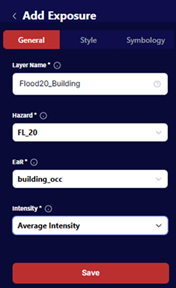
Individual Exposure Calculation
For Aggregated Exposure, calculate an associated Individual Exposure beforehand:
Layer Name: Flood20_Building_Agg
Exposure: Flood20_Building
Admin Level: Admin_Unit
Intensity: Average Intensity
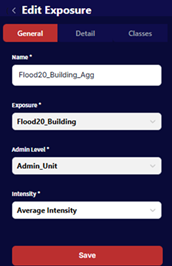
Aggregated Exposure Calculation
Once calculated, two tables are obtained: Summary Table and Detail Table. The Summary Table summarizes exposed Elements-at-Risk counts and areas per class. The Detail Table shows feature-level values including Minimum, Average, and Maximum hazard intensity.
Summary and detail tables report metrics such as:
Exposed fraction
Exposed area / length
Exposed Population and Value
Minimum, average, and maximum intensity (Detail Table)
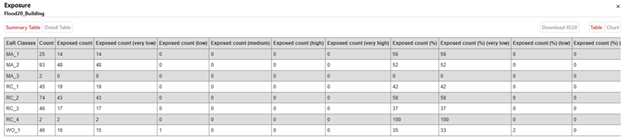
Exposure Table Result (Summary Table)
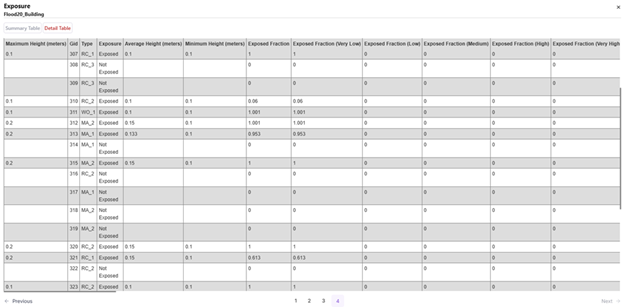
Exposure Table Result (Detail Table)
Aggregated Exposure generates summary metrics (Area, Value in USD, Population) per administrative boundary and can be exported as XLSX or displayed as charts.
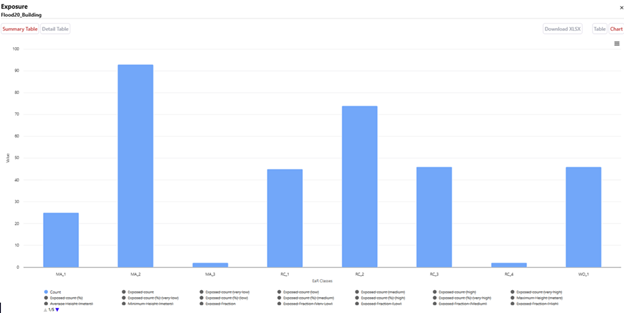
Exposure Summary Chart
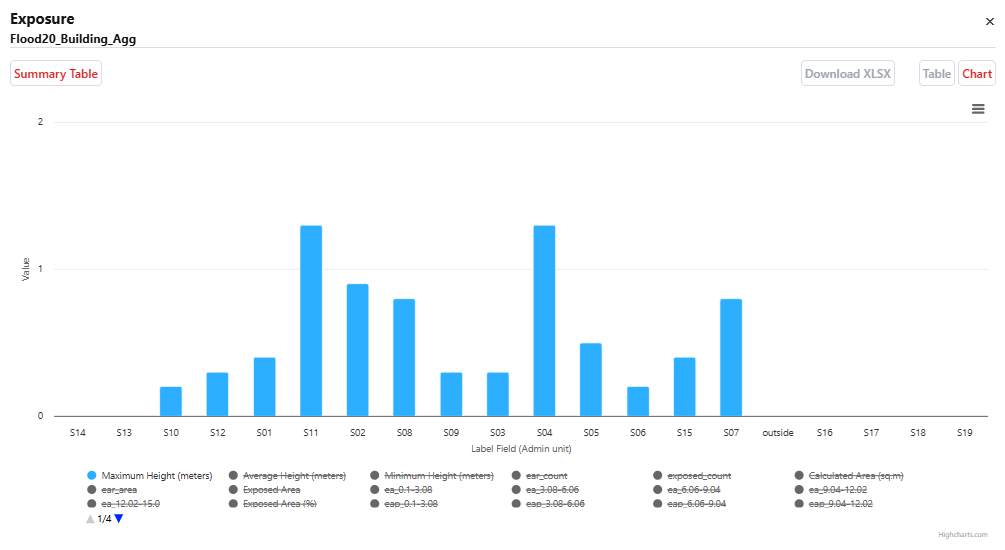
Aggregated Exposure Chart
Note
Layer visualization affects subsequent Exposure, Loss, and Risk calculations. Re-calculate Exposure if class ranges or styles are changed before computing Loss or Risk.
6. Running a Loss Analysis
Go to Loss > Add Loss. Choose between:
Individual (feature-based): Calculates loss for each elements-at-risk feature.
Aggregated (admin unit-based): Calculates loss aggregated by administrative boundaries.
In the General section, enter:
Layer Name: Flood20_Building_Loss
Exposure: Flood20_Building
Click Save & Next.
Link each EaR class to its associated vulnerability curve in the General tab (from My Vulnerability or All Vulnerability) and click Save.
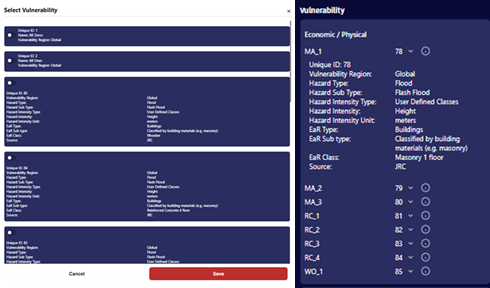
Linking Vulnerability for Loss Calculation
For Aggregated Loss, calculate individual loss beforehand:
Layer Name: Flood20_Building_Loss_Agg
Loss: Flood20_Building_Loss
Admin Level: Admin_Unit
Intensity: Average Intensity
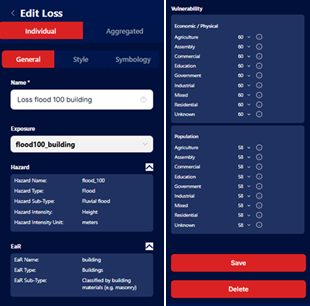
Loss Calculation
Loss calculations output Summary Table and Detail Table detailing Damage Ratio, Loss Count, Loss Area, Loss Population, and Loss Value.
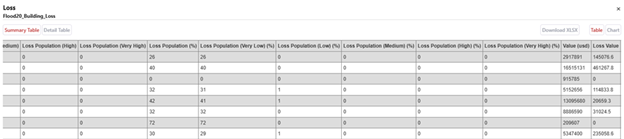
Loss Table Result (Summary Table)
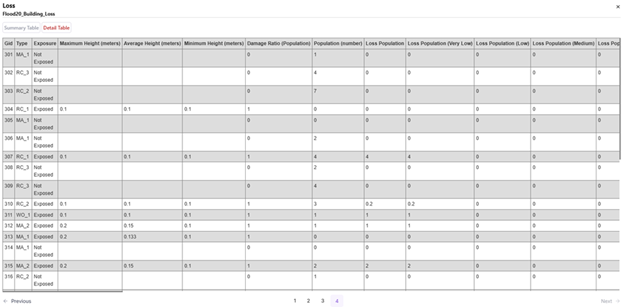
Loss Table Result (Detail Table)
Repeat all steps from Exposure through Aggregated Loss for all return periods (20, 50, 100, 200).
7. Running a Risk Analysis
Go to Risk > Add Risk. In the General section, enter:
Name: Flood_Building_Risk
Admin Level: Admin_Unit
Hazard Type: Flood
Hazard Sub Type: Fluvial flood
EaR: Building_Footprint
Select Aggregated Losses: Select multiple return period aggregated loss layers (Flood20_Building_Loss_Agg, Flood50_Building_Loss_Agg, Flood100_Building_Loss_Agg, Flood200_Building_Loss_Agg).
Click Save & Next.
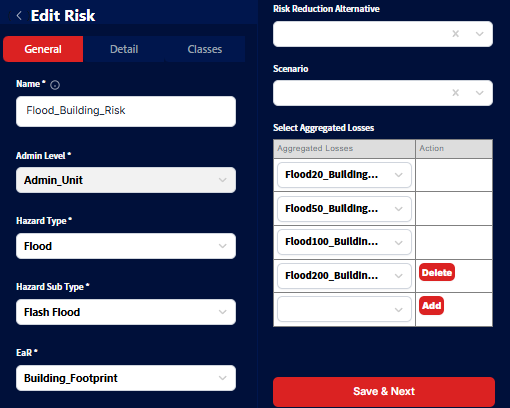
Risk Calculation
Once computed, a risk map is rendered. The summary table shows Average Annual Loss (AAL) in terms of Count, Area, Value (USD), and Population per administrative unit.
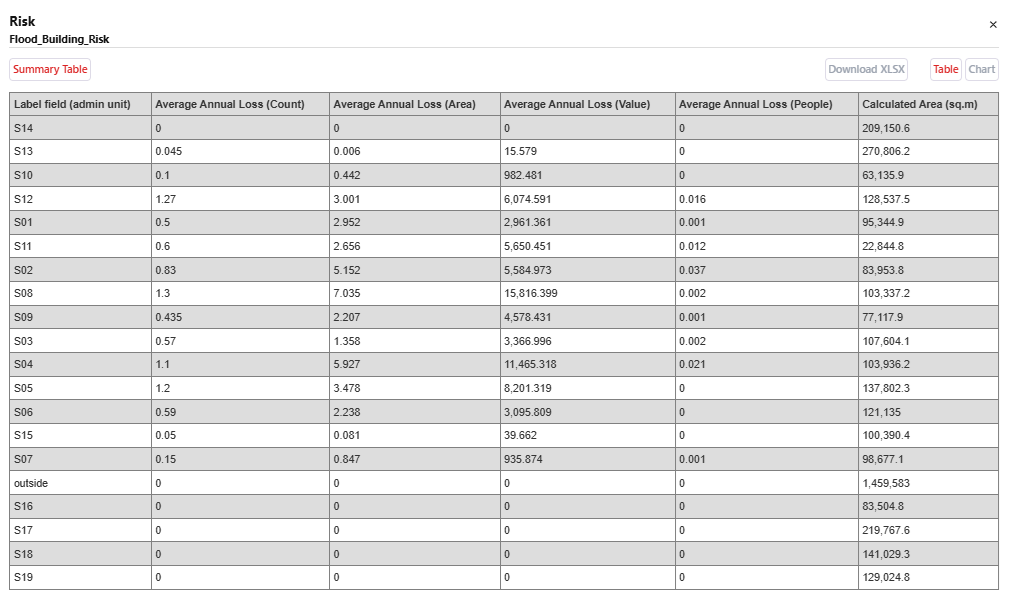
Risk Table Result
Scenario, Alternative, and Cost-Benefit Analysis
This section introduces the Scenario, Alternative, and Cost-Benefit Analysis (CBA) modules in RiskChanges.
Note
This tutorial assumes that all hazards, elements-at-risk (EAR), and vulnerability data have already been uploaded.
Scenarios represent possible future developments (e.g., climate change, land use, population growth).
Alternatives represent risk reduction measures (e.g., engineering solution, ecological solution, relocation).
CBA compares alternatives to identify the most optimal solution.
Scenario Module
The Scenario module allows users to define future conditions and assess their impact on hazard, exposure, and risk. In this tutorial, four scenarios are used:
Name |
Land Use Change |
Climate Change |
|---|---|---|
Scenario 1 (Business as usual) |
Rapid growth without taking into account risk information |
Limited change in climate expected |
Scenario 2 (Risk informed planning) |
Rapid growth taking into account risk information and extending alternatives in planning |
Limited change in climate expected |
Scenario 3 (Worst case) |
Rapid growth without taking into account risk information |
Climate change expected, leading to more frequent extreme events |
Scenario 4 (Climate change adaptation) |
Rapid growth taking into account risk information and extending alternatives in planning |
Climate change expected, leading to more frequent extreme events |
Note
Only two land parcel maps and two hazard maps are required overall:
Scenario 1 & 2 share the same hazard map.
Scenario 2 & 4 share the same land parcel map.
To define a Scenario:
Go to Project Dashboard → Project Settings.
Select Scenarios and click Add Scenarios.
Fill in Scenario Name and tick the Risk Component which changes due to the scenario.
Input description and upload supporting files if applicable.
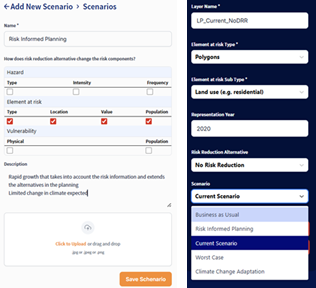
Scenario component matrix settings used in this tutorial:
Scenario |
Hazard Intensity |
Hazard Frequency |
EaR Type |
EaR Location |
EaR Value |
EaR Population |
|---|---|---|---|---|---|---|
Current |
No |
No |
No |
No |
No |
No |
Business as Usual |
No |
No |
Yes |
Yes |
Yes |
Yes |
Risk Informed Planning |
No |
No |
Yes |
Yes |
Yes |
Yes |
Worst Case |
Yes |
Yes |
Yes |
Yes |
Yes |
Yes |
Climate Change Adaptation |
Yes |
Yes |
Yes |
Yes |
Yes |
Yes |
Submitted scenarios will appear in the Scenario Table and can be chosen when uploading Hazard or Elements-at-Risk layers.
Alternative Module
Alternatives represent risk reduction strategies evaluated in RiskChanges. The three alternatives used in this tutorial:
Alternative |
Details |
|---|---|
1: Engineering Solutions |
Active and passive control works: soil removal in landslide areas, storage basins, water channels, and slope monitoring systems. |
2: Ecological Solutions |
Active and passive control works: soil removal, soil nailing, water tanks, water channels, oak tree barriers, and natural park establishment. |
3: Relocation |
Relocating residential population from endangered units by compensation or providing new housing. |
Note
Alternatives 1 and 2 require new land parcel and hazard intensity maps. Alternative 3 uses existing hazard maps.
To define an Alternative:
Go to Project Dashboard → Project Settings.
Select Alternatives and click Add Alternatives.
Fill in Alternative Name, tick changed Risk Components, and enter economic parameters:
Project Lifetime (years): Duration for cost-benefit evaluation.
Total Initial Investment Cost: Total cost of implementation.
Initial Investment Period (years): Time before benefit is achieved.
Annual Maintenance Cost: Annual cost to maintain the alternative.
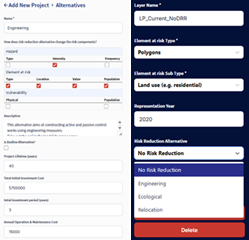
Cost parameters summary for this tutorial:
Parameter |
Alternative 1: Engineering solutions |
Alternative 2: Ecological solutions |
Alternative 3: Relocation |
|---|---|---|---|
Benefit Start Year |
4 |
6 |
3 |
Total Investment Cost |
$9,801,016.00 |
$17,158,442.00 |
$4,493,700.00 |
Annual Maintenance Cost |
$294,030.48 |
$343,168.84 |
$0.00 |
Discount Percent Rate |
3% |
3% |
3% |
Project Lifetime |
40 years |
40 years |
40 years |
Submitted alternatives will appear in the Alternative Table and can be selected when uploading Hazard or Elements-at-Risk layers.
Upload Associated Data & Layer Combinations
When uploading hazard or elements-at-risk datasets representing specific scenarios or alternatives, select the applicable Scenario or Alternative option during upload.
Layer combinations used for analysis:
Scenarios |
Land Parcel Layer |
Flood Layer |
|---|---|---|
Current |
LP_2020_A0_S0 |
FL_DE_2020_A0 (20, 50, 100, 200 RP) |
Business as Usual |
LP_2050_BAU |
FL_DE_2050 (20, 50, 100 RP) |
Risk Informed Planning |
LP_2025_RiskInformedPlanning |
FL_DE_2050 (20, 50, 100 RP) |
Worst Case |
LP_2050_BAU |
FL_DE_2100 (20, 50 RP) |
Climate Change Adaptation |
LP_2025_RiskInformedPlanning |
FL_DE_2100 (20, 50 RP) |
Alternatives |
Layers Combination |
|---|---|
0: No DRR |
Same as Current Scenario layers combination. |
1: Engineering Solutions |
LP_2020_Engineering & FL_DE_Engineering (20, 50, 100, 200 RP) |
2: Ecological Solutions |
LP_2020_Ecological & FL_DE_Ecological (20, 50, 100, 200 RP) |
3: Relocation |
LP_2020_Relocation & FL_DE_Relocation (20, 50, 100, 200 RP) |
Calculate Exposure, Loss, and Risk for Alternatives
Repeat the Exposure, Loss, and Risk calculation workflow for each alternative/scenario layer combination to derive Baseline Risk and Alternative Risk layers for Cost-Benefit Analysis.
Cost-Benefit Analysis (CBA) Module
The CBA module calculates cost-efficiency by comparing baseline risk with alternative risk.
Go to CBA and click Add CBA.
Under the General section, fill in:
Name: LP_Current_Engineering
Admin Level: Admin_Unit
Baseline Risk: FL_LP_Current_NoDRR
Alternative Risk: FL_LP_Current_Engineering
CBA Region: Select Entire Region or Each Admin Unit.
Note
Selecting Entire Region computes CBA for the entire project region. Selecting Each Admin Unit computes CBA for individual administrative units.
Fill in the CBA Form parameters:
Base Year: 2020
Project Starting Year: 2020
Project Lifetime in Years: 40
Currency: USD
Total Investment Cost: 9801016.00
Initial Investment Period in Years: 4
Annual Operation and Maintenance Cost: 294030.48
Discount Rate Percentage: 5
Click Save & Next.
Upon calculation, a CBA map is rendered on the map canvas.
CBA Output Tables & Comparison
Summary Table & Chart: Displays key economic indicators including NPV (Net Present Value), BCR (Benefit-Cost Ratio), and IRR (Internal Rate of Return). Downloadable in XLSX format.
Detail Table & Chart: Shows annual benefit calculations including Annual Cost, Present Value of Cost, Benefit, Present Value of Benefit, Net Benefit, and Discounted Net Benefit over the project lifetime.
CBA Comparison: When multiple CBA result layers are activated, click Compare to compare alternatives by IRR, NPV, and BCR in both tabular and graphical charts to select the optimal risk reduction intervention.